I have had a small problem ever since downsizing from two 27” monitors to a single ultrawide 34” monitor. I don’t mind that I gave up one third of my screen real estate, because I had to turn my head too far to see that part of the screen anyway. Downsizing was mostly an upgrade. The trouble is that I can’t keep an eye on Discord chat while gaming.
I thought about adding one of those 1920x800 ultrawide touch screens to my desk, but I couldn’t convince myself that having a small second monitor was actually the right plan. I don’t want windows randomly positioning themselves down there. I don’t want my mouse pointer accidentally getting lost down there.
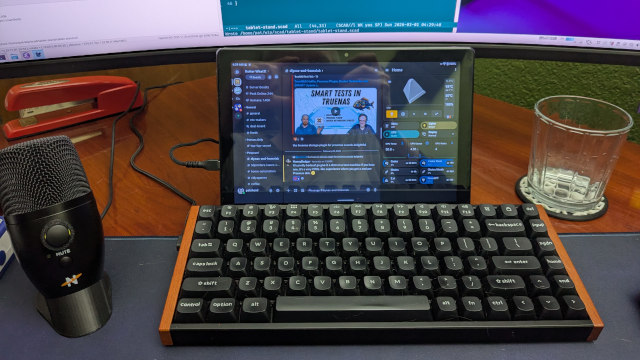
That’s when I had another great idea. I have had a delightful JC Pro Macro pad at my desk for the last few years for Mission Control purposes. I had keys to turn my espresso machine on, force a particular office lighting profile in Home Assistant, and control my GPU power level. I had all those keys lit up to indicate the current status of their function, but lights only go so far. I figured that I could do much better here with a small Home Assistant dashboard.
The macropad dashboard has been a massive upgrade, because the buttons work when my computer is locked or off, because it is just running the Home Assistant app on a split-screen Android tablet.
A quick note on the tablet I used
I am linking the cheap 10” Android tablet that I used all over the place in this blog post. I am most definitely NOT saying that this is the best option. It was the right size for me. The DPI fits well enough. The price was right. I think the best that I can say is that it is extremely adequate.
A 1920x1200 tablet would be better, and I have posted a few at the same price point to the deal board on the Butter, What?! Discord server since I bought this tablet. A faster tablet with more RAM would be nice, because the apps clear the screen and reload every time I flick between my split-screen view and Firefox. It isn’t a thing I do often, but I wish this didn’t take a few seconds every time I have to keep an eye on an OpenCode session in the browser.
I have uploaded my custom tablet stand with room to hide cables to MakerWorld and Printables. I am also linking to the 90-degree flat cables that I chose. All of these things worked well for me, so I want them to be easy for you to find.
This project has been moving slowly
I ordered a 10” Android tablet for $60 from Amazon. It is only 1280x800, but that is fine, because it is a slightly higher DPI than my main display. The size is perfect. I mocked up a test dashboard on my existing 8.4” tablet before I ordered, and that tablet was definitely too small for the job. Any bigger, though, and I would be blocking my main screen.
I had a useful setup the day the tablet arrived. I was using a basic 3D-printed folding phone stand to prop the tablet up. I fired up Discord and Home Assistant in a split screen, and I expanded Discord to take up two thirds of the display.
Immediately useful, but far from ideal. That little stand was wobbly, so it wasn’t fun pushing buttons on the dashboard. I had USB-C cables running all over the place. The tablet was a little too low to touch the bottom of the screen without hitting the keyboard. The macropad was half empty, and it had limited functionality.
I made some slow, incremental progress until I started using the Home Assistant VibeCode MCP. Once I was able to just tell OpenCode what I wanted added or removed from the dashboard, things started moving fast!
The final setup!
That encouraged me to design a better 3D-printed stand. I ordered some 90-degree low-profile USB-C cables. I even wound up drilling a hole in my desk to completely hide the cables! Now all we can see is a short stretch of cable for my USB-C microphone.
The macropad dashboard has my Bambu A1 Mini controls and status on the top. Then there are four bubble-card buttons to control my espresso machine, my office lighting, whether my GPU is in quiet or max performance mode, and a drop-down button to control whether my PC uses the monitor, just the TV, or both displays at the same time.
Below that are some CPU and GPU status graphs. These aren’t absolutely necessary, but they make the display more interesting.
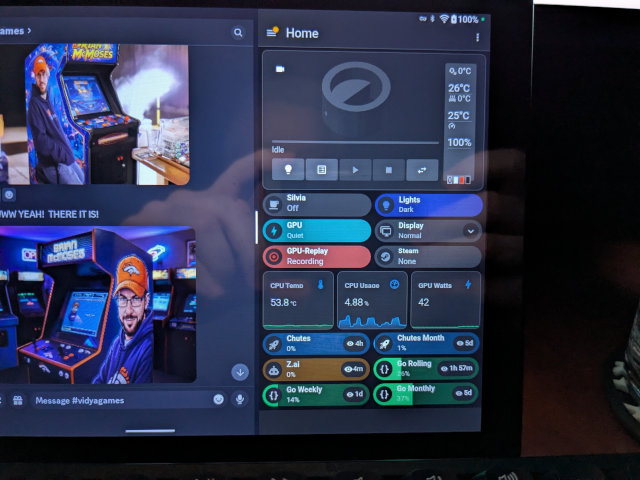
The bottom shows the utilization of my quotas on various LLM coding plans.
I was going to add these next two buttons to the “What’s next?!” section of this post, but it is so easy to vibe code Home Assistant that I set them up in barely more time than it would have taken to write the paragraph. I’ve added a button to indicate whether gpu-screen-recorder has its replay buffer running. This is a handy reminder, since I can’t actually see gpu-screen-recorder when a game is running.
I also added an indicator to show which Steam game is currently running. You can click on any of these buttons or graphs to see the history. The CPU and GPU graphs show a 24-hour graph when you click on them, and the Steam button shows a list of games and start times.
Is it better to have a separate device instead of just a second monitor?
That is up to you to decide for yourself. This is definitely better for me. I can click through various channels in our Discord community or switch my GPU out of quiet mode without Arc Raiders losing focus. Those two features alone are an absolute delight.
In the months that I have had this setup running, I believe I have only spent a couple of hours with anything other than my Discord/Macropad split on the screen. I needed to pull up a map of raider caches in Arc Raiders last week, so I pulled up Firefox on the tablet and loaded the page.
This is the first time that I wished I bought a faster tablet. The macropad and Discord are fine, but the Arc Raiders map site is a Javascript monstrosity. It was a little slow to load, and scrolling around was sluggish. Not unusable, but noticeable.
I CAN use my Android tablet as a second screen
I did try this out. Bazzite Linux ships with krfb-virtualmonitor installed. This lets you create a virtual display that is exported as a VNC session. It was easy to use, and I was able to connect using a VNC client on my tablet.
The latency is noticeable, but it looked great. I wouldn’t want to use the tablet as my primary display, but it would be fine to throw Discord or htop or something on it to keep an eye on things. I might start bringing the 10” tablet with me when I am away from home to use as a second display for my laptop.
Getting the screen angle right is VERY important!
I have to admit here that I first tried this by turning 2-in-1 laptop inside-out. The 14” screen is about as wide as my Keychron K2 HE keyboard. The farther back you can tilt the screen, the taller of a screen you can fit under your monitor. On the surface, this sounds really smart!
The trouble for me was the glare. I had to tilt the giant laptop screen so far back to fit it under the monitor that all I could see was a reflection of my ceiling. That was a massive problem, and the laptop was still a little too big to fit between my keyboard and monitor, so that was obviously a terrible idea.
This is still a problem with the 10” Android tablet. The tablet is a little over six inches tall in landscape orientation, but my monitor is only a little over five inches off the desk. My tablet is raised up a bit by the stand, and even tilted backwards at about twenty degrees the top is still 6.5” tall.
I was worried that this would block the monitor, but the tablet is close to the keyboard. That means my eyes are high enough that I can still see over the tablet. I was worried that this would be distracting, but I stopped noticing the tablet pretty quickly.
Your goal should be to get the tablet as close to vertical as you can get away with. If you have to lean it too far back, you will have to deal with glare.
You need to keep your tablet screen awake using Caffeine!
It used to be possible to keep your screen on and bright all the time using system settings or settings available in the developer options. You can no longer set the screen timeout to infinity, but you can set it pretty high.
Unlocking the tablet every eight hours didn’t seem like it would be a big deal. The trouble is that my screen was dimming long before the screen turned off. Yuck.
I found an app in the Play store called Caffeine. I got the settings right on the second try, and my second-screen tablet has been lit up for the last two weeks. It is perfect.
The tablet isn’t the only extra monitor at my desk
I upgraded the wall-mounted 43” television in my office last year. I went from an ancient 1080p TV with massive bezels to a 55” 4K 120-Hz mid-range gaming TV with narrow bezels.
It is mounted to the wall across from my office’s recliner. It is great for watching the occasional show or playing controller-based games on Steam. It also happens to be mounted over my desk, so I took some care to make sure that the new TV landed right next to my monitor, and I made sure the bottom of the TV was at about the same level as the bottom of my monitor.
You can’t do work on the TV. The DPI is too low, and it is just way too big. That doesn’t mean it isn’t useful as a second display. I use the bottom corner of the TV as a second monitor a few times a week. I might leave an OpenCode window over there to keep an eye on it. I’ll often drop a small YouTube window when I am watching a podcast.
The ultrawide monitor has me 100% covered roughly 95% of the time. I just had to dig deeper into using more virtual desktops again to make a single screen work. The TV and now the Android tablet have me covered for that 5% of the time when I actually need just a little extra display in front of me.
It isn’t just a macropad and Discord device now!
I set up an open-source Android app called Ava. Ava emulates an ESPHome voice satellite for Home Assistant. Ava is connected to my Home Assistant server, and my Home Assistant server’s voice assistant is plumbed into a voice transcription server and a local LLM server running on a $56 GPU in my homelab.
This is more of a proof of concept at this point than a replacement for my Google Home Mini devices. Home Assistant’s voice assistant doesn’t include batteries. I can use my voice to ask for the status of devices on my Home Assistant server, turn devices on or off, and set timers. My assistant doesn’t have access to the Internet yet.
This is a fun project, and I think it has a lot of potential. It is especially neat that it is working on a piece of hardware that I was already using at my desk!
- Home Assistant Voice Control With a $56 GPU and Local Machine Learning
- Fast Machine Learning in Your Homelab on a Budget
What’s next for the macropad dashboard?!
I have everything I need. There isn’t much wasted space. I prefer things to be automated. I feel like I have failed a bit every time I have to manually control something in my office, but I am aware that not everything can be automated. It is nice to be able to turn a light on for a minute while I am in the middle of a game, and there is no way for the system to figure that out on its own!
I am most disappointed in the three graphs in the middle of the macropad. They feel like a waste of space. The graphs only take up the bottom third of that row. They don’t contain important enough information, but they do look neat. I bet we could come up with a better way of displaying the same information. I bet we could squeeze even more useful information into the same space.
Conclusion
This Android tablet setup turned out better than expected. Discord chat and my Home Assistant dashboard below my main monitor have become indispensable. I can switch Discord channels or toggle my GPU without alt-tabbing out of a game. I can see at a glance whether my espresso machine is ready to pull a shot or my 3D-print job is going to complete soon. These are minor conveniences, but they add up.
My macropad dashboard works whether my computer is on, off, locked, or booted into a different OS. I can turn the lights back on if a bleeding-edge GPU driver locks up in the middle of a game! The 3D-printed stand and low-profile cable routing keep everything clean. I spent maybe $70 total, and it was worth every penny.
Have you tried something similar at your desk? Maybe you’re using a macropad with a tiny display, or repurposed an old tablet as a Home Assistant dashboard. Come hang out with us in our Discord community and share your desk hacks. We’re a friendly bunch of homelabbers, 3D-printing enthusiasts, and tinkerers who love this kind of thing!