

Sceptre's New C40 39-inch 5K2K VA Gaming Monitor -- I Bought One!
I saw a deal on Amazon for the new Sceptre C415B-UUS360 5120x2160 VA gaming monitor for $475, and I was immediately itching to pull the trigger. I have been drooling over Brian Moses’s 45” 5120x2160 OLED for more than a year, but it is expensive, and I’m not so sure about that 1000R curve. More recently, I have been drooling over LG’s new 39” 5120x2160 tandem OLED.
The 39” isn’t as big, so it has a slightly higher DPI. It has normal RGB subpixels, so text renders cleaner. All the other specs match the LG 45” 5K2K that Brian uses. The Sceptre 5K2K has the same size, pixel count, DPI, and curve as LG’s 39” 5K2K. I’ve been hoping that the LG would come down in price, but I just couldn’t bring myself to pay $1,400 for an OLED monitor that might slowly burn itself out. That’s not as big of a risk these days, but it still concerns me at that price point.
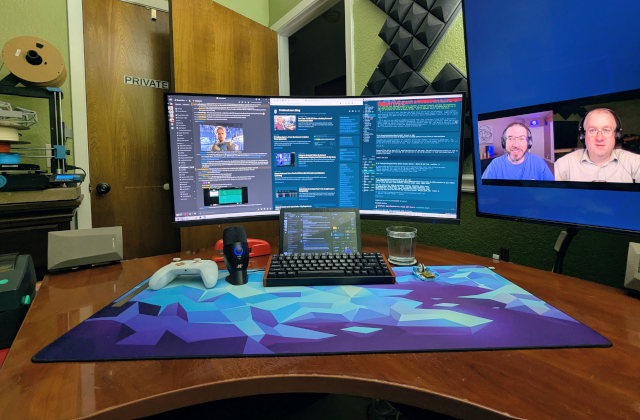
The Sceptre is a bit of a compromise for me. I’ve really, really wanted to own an OLED gaming monitor with those amazing 0.03ms pixel response times, but you pay a lot for that, and I can only fit one monitor on my desk.
I am going to explain everything, but the tl;dr is that I would encourage you to buy this monitor. If you can afford the 5K2K OLED, you should definitely buy it. If $500 is more your speed, and you’re OK with more normal latency and pixel response at 180 Hz, just pull the trigger. Amazon has a good return policy, but I don’t think you’ll be sending the Sceptre back.
- Sceptre C40 5K2K Gaming Monitor at Amazon
- LG 39-inch 5K2K Tandem OLED Gaming Monitor at Amazon
- LG 45-inch 5K2K OLED Gaming Monitor at Amazon
My friend Nanobot and I did a lot of digging!
There are no third-party latency or ghosting tests of my new Sceptre C415B. My little friend Nanobot and I suspect that it is using the same 5120x2160 VA panel as the Samsung G75F. The raw specs for the panels make them seem like twins: same size, same viewing angles, same dot pitch, same curve, and both support 180 Hz at 5120x2160 or 360 Hz at 2560x1080.
This is what made me pull the trigger. Tom’s Hardware has latency and ghosting testing of the Samsung G75F. I carefully chose my Gigabyte 34” monitor with extreme care. I knew it was a VA panel, and many VA panels have horrible ghosting. Third-party tests said it was one of the best ultrawide monitors anywhere near its price point, and it did cost about 50% more than the other untested monitors. The Samsung exceeds the overall latency of my Gigabyte monitor by 5 milliseconds, and has at least a slight edge on every other important metric.
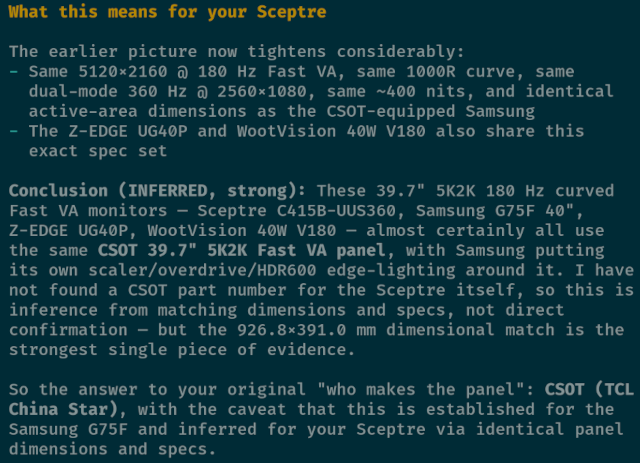
Some of these specs come down to implementation. There is no guarantee that Sceptre has done a good a job processing the signal and getting the pixels to the screen as efficiently. Their controller may have more ghosting. I figured it was worth the risk to save more than $300 compared to the Samsung.
Don’t just trust that your artificial robot assistant is correct. They’re excellent tools for web research, because they’ll ingest every page along the way and remember more details from each page than I ever would. Always check the sources. In my case, the evidence was more than strong enough for me to try the Sceptre C40 monitor myself, and I am glad I did. Everything the robot said above is not only plausible, but seems extremely likely after using the monitor myself!
A note about OLED monitors, longevity, and pricing!
Going all the way back to the nineties, monitors have been one of the things that survive computer upgrades. LCD monitors last a long time. We have monitors in use in house that are more than 10 years old. We’re not chasing latency on these extra machines, so older monitors are fine.
There is a lot of testing showing that OLED monitors easily last five years without significant dimming or burn in. I’m still wary, especially at OLED prices. We tend to play musical chairs with monitors. An hour after I had my Sceptre up and running on my desk, we swapped my Gigabyte ultrawide onto the stand on my wife’s desk where she docks her laptop. That monitor was on my desk for three and a half years, and it will probably be on her desk even longer.
Unlike RAM, flash, and mechanical storage, peripheral prices seem to be coming down, or at least the specs you get per dollar are going up. Maybe this Sceptre will be on my desk for four years. Maybe the LG 39” tandem OLED will work its way down under $1,000 and two desks at my house will get an early upgrade.
Prices are still coming down. OLED monitors are still improving and getting more durable. This is just something to consider, especially if you have more than one desk at your house, or you have a friend or family member who can be the next chair in your upgrade rotation.
- LG 39-inch 5K2K Tandem OLED Gaming Monitor at Amazon
- LG 45-inch 5K2K OLED Gaming Monitor at Amazon
I had to upgrade my gas-shock monitor arm!
I started my monitor-arm journey with a DIY dual monitor stand made from steel pipe and PVC stuff from Lowes. In those days, you couldn’t even by basic monitor arms for less than $100. Not that many years later, I was able to upgrade to a simple dual-monitor arm from Amazon for around $30, and that was a massive upgrade. A couple of years ago, though, I upgraded to a $25 adjustable gas-shock arm that could hold a 25-pound monitor.
I never attached the stock stand to the Sceptre C40. I haven’t had a single monitor at home on its stock stand in more than 15 years, and I don’t intend to start now!
I did put my new 18-pound Sceptre C40 on there. It seemed fine, and it might be fine for you. I am abusing the situation a bit because I can’t mount the arm directly behind the monitor because of the layout of the legs on my L-shaped corner desk.
When I woke up the next morning, I noticed that my monitor was tilted to the left. That’s weird, because the monitor is well balanced, so it should be putting any weird weight on the roll axis adjustment. It wasn’t. The upper arm piece was twisting slightly! Certainly not the end of the world, but that meant every time I reoriented the monitor it wouldn’t stay level. That tilt was moving.
I upgraded to a $42 stand that can hold 37 pounds. It is significantly beefier. It isn’t twisting. Even better, it is easier to adjust. Especially on the roll axis. This may be exacerbated by the weight, but whenever I tried to tilt the monitor to level, the old stand’s roll-axis joint would move A LOT when it finally overcame its stiction. That made it hard to zero in on perfect level. I had the same sort of problem with the wimpier stand on its pitch axis.
The new stand is more appropriate for this monitor. It has a big, spring-loaded pitch-axis joint. It is smoother to adjust. It still has some stiction, but it is much easier to deal with.
Don’t just buy the heaviest, beefiest monitor arm you can find. These gas shocks have a minimum weight. You probably won’t find one with a minimum lower than the weight of the Sceptre C40, but if you do, you won’t be able to lower the monitor. It will be up in the stratosphere. Be sure to check the specs and make sure it can handle a monitor as light as 18 pounds!
I don’t have any fancy measuring equipment
I only have my eyes and my fingers. When I upgraded from my old, overclocked 102-Hz QNIX QX2710 1440p IPS monitors to a single 144-Hz Gigabyte 1440p Ultrawide monitor, my timing in Team Fortress 2 was off. The Gigabyte had a higher refresh rate and lower overall latency than the QNIX monitors. It took me a few rounds to adjust my shots.
I’ve been playing a lot of Arc Raiders this year. It isn’t as twitchy or as fast as Team Fortress 2, so it isn’t quite as good of a comparison, but I did not have to adjust to the Sceptre monitor when I jumped back in this week. My shots were landing just as well as they always do.
This isn’t science. I was running FSR4 on Balanced, which means I had a rendering resolution of 2024x847 for output at 3440x1440. I switched to Performance mode now, which has a rendering resolution of 2560x1080 for output at 5120x2160. My frame rate has dropped a bit as a result. Not by a significant margin, but it does make things at least a bit less comparable.
I hope someone does some proper testing of this budget-friendly 39” 5120x2160 monitor, but for now I am happy to know that it is at least as good as my Gigabyte 34”.
I am curious about Sceptre’s blur reduction feature
I have only had the monitor for four days. I’d like to try a few games with blur reduction enabled, but I am too busy spending my precious gaming time on the Arc Raiders update to test features that matter less to me! Blur reduction doesn’t fit my sensibilities all that well, though. You lose almost all color and contrast customization when you enable blur reduction, and the heavier the reduction setting, the dimmer the screen gets. You also lose adaptive sync.
I couldn’t find verification that Sceptre is using black frame insertion (BFI), but the dimming heavily implies that BFI is at least one component of the blur reduction feature. I can only assume that it is doing other things as well, because BFI wouldn’t preclude adjusting color temperature and contrast.
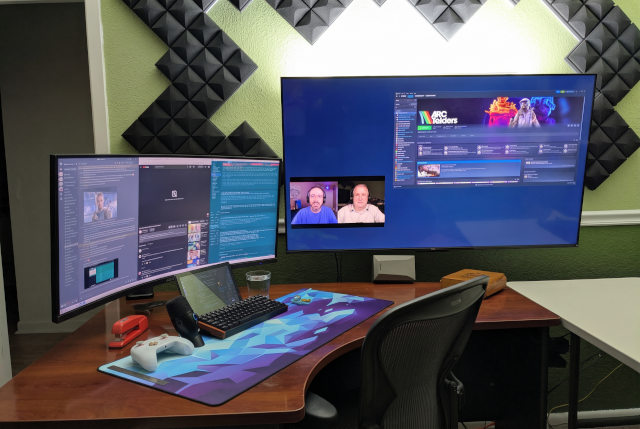
I can tolerate the loss of VRR at 180 Hz. The partial frames are way harder to notice when they are only on the screen for less than 6 milliseconds. Tearing is much easier to see at 60 Hz where every partial frame is visible for nearly 17 milliseconds.
I can’t tolerate the dimming or lack of color control for productivity tasks. This isn’t just a gaming monitor for me. I sit here to do things like write blog posts. I need a display that looks great all the time, and I don’t want to have to tinker with the monitors settings every time I want to play a game. Sceptre might have a utility to handle this on Windows, but I don’t have that option on Linux.
I haven’t played a game, but I did try the UFO test with blur reduction on every possible setting. At 960 pixels per second, I think the UFO looks fine without blur reduction. Maybe my old-man eyes with my workspace progressive lenses just don’t do a good enough job tracking the UFO. I will say that I do see a MINOR improvement in the clarity of the already clear UFO when setting blur reduction to the maximum. It becomes easier to see the thin black line between the alien’s yellow head and the thin dome of the flying saucer.
Definitely makes a difference, but not a big enough difference for me to give up variable refresh rate (VRR).
360-Hz gaming is bananas!
I had to noodle around in my vast Steam library to find a fast-paced first-person shooter that could keep up a frame rate well over 180 Hz. Team Fortress 2 is ancient, but the Linux port has trouble staying much over 100 FPS no matter how high or low you dial the settings.
I wound up settling in on RoboQuest! It is one of my favorite games. It has no trouble staying up well over 200 FPS at 2560x1080 as long as I dial the settings down. I only played through the first map. Switching gears from Arc Raiders was a challenge, and I am set to one of RoboQuest’s Guardian difficulty levels. As expected, I did not do well, but it was so much fun to see 300 Hz at my own desk! So smooth and buttery.
It is a neat feature to have, but those chunky pixels don’t make for a pretty game. My new Sceptre monitor has 140 pixels per inch. My old 34” 3440x1440 has a respectable 109 pixels per inch. The Sceptre monitor at 2560x1080 has a measly 70 pixels per inch. My first LCD monitors on my desk were a couple 14” 1024x768, and they still had 92 pixels per inch.
It is neat having a 360-Hz monitor. It is neat that I can occasionally make some use of that feature. The reduced resolution is a bummer, but not a deal breaker. The real bummer is that I have to click through the monitor’s menu to toggle between 180 Hz and 360 Hz. I will rarely do that.
Using a 39” 5K2K for productivity
I realized some neat things while doing math over the last few days. Do you have a 32” 4K monitor? That would be precisely the same DPI and height as my 39” 5K2K, but I get an extra 1,280 horizontal pixels. That’s neat!
This is a tall monitor. An extra 2.5” of height over the 34” ultrawide doesn’t seem like a lot, but it is. Especially when you set your vertically-stretched windows to the same width on both monitors.
You might not want to think of these massive 39” or 45” ultrawide monitors as being wide displays. You should probably treat them as if they are two or three relatively tall and narrow displays.
You could definitely run four 15.5” tall coding windows side by side–a browser, a text editor, your coding harness, with room for a terminal or two in the fourth column. I have been sticking to three columns, because the 34” ultrawide taught me just how much I like having my most important window directly in front of me. That is my Emacs window right now.
I am using a custom modified version of Kzones. I can hit a key to cycle zone layouts, and all the zoned windows move right into place. I have one layout with three equal columns, one with a 25% wider center column, and a layout with four columns. In my setup, the fourth column is slightly narrower and it automatically tiles terminal windows vertically.
I imagine this will evolve over time, but I expect to work similarly to how I worked on the 34” monitor. Most of the time I treat one display like three separate monitors, but it is amazing not having the bezel in the way, because you don’t HAVE to respect any of those physical borders.
You don’t have to aim your face at the center of the screen!
For more than a decade I had a pair of 16:9 monitors on my desk. First a pair of 22” Sceptre 1920x1080 monitors, followed by a pair of QNIX QX2710 27” 2560x1440 monitors. I used to center myself just off center of where the monitors met, and I usually had each monitor split into columns somewhere in the ballpark of 65% in one column and 35% in the other. I would focus on the wide column directly in front of me, then there would be a narrow column on either side. That pretty much filled up most of my field of view, and using the other 2/3 of the second monitor required a head turn.
I have one Kzones layout where I am doing something similar with my massive monitor today. I am using four columns. Three equal columns are on the left 4200x2160, while the column on the right is using the remaining 920 pixels for a column of small-font terminal windows to monitor tasks. I keep my face at the center of the three wide columns, and I can glance over at the extra column when needed.
This isn’t perfect for me, because I effectively locked my keyboard and head into pointing at the center of the monitor when I added my desk tablet and microphone. I can’t just push my keyboard over and focus in a slightly different direction now, but you probably can.
You’re probably not locked in like I am. Have you been thinking about buying one of those nifty 3:2 aspect-ratio monitors? If you buy something bigger, like my Sceptre C40, you can use 3420x2160 on one side as your primary workspace, then use the remaining 1700x2160 for monitoring tasks, keeping a chat window or two up on your screen, or watching a YouTube video.
Monitors are getting big enough to fill your entire field of view. You can use software like Kzones on Linux or FancyZones on Windows to treat your larger display almost as though it is two or more monitors. When you don’t have any bezels in the way, you can configure those zones in whatever arbitrary way fits your workflow best.
- Sceptre C40 5K2K Gaming Monitor at Amazon
Is the Sceptre 39” ultrawide too big?
Almost. I have the Sceptre mounted to my gas-shock monitor arm–thank goodness the one I already had can support the extra weight! I used to have the bottom of the 34” screen closely lined up with the height of my 55” TCL gaming TV, but that just puts the top of this massive monitor up in outer space, so I dropped it about 1” lower than the TV.
This is trouble, because my 10” desk-tablet macropad is precariously close to blocking the bottom of the screen. I can 3D print a new stand that leans the tablet back a little farther, but I learned early on that too much tilt on the tablet means I’ll be looking at a reflection of the ceiling. I can’t give up the Android tablet. I enjoy being able to keep track of Discord conversations while gaming, and my Home Assistant macropad dashboard lets me keep an eye on my Bambu A1 Mini’s printing progress.
I don’t enjoy tilting my head back to look up. I tried mounting an extra monitor above my old 27” QNIX QX2710 monitors, and I didn’t even like using the bottom quarter of that screen. It was just too high up.
The top of the Sceptre isn’t QUITE that high, but it is precariously close! I assume I’ll keep adapting over the next few weeks.
- 10” 1280x800 Android Tablet at Amazon
- Vibe Coding My Home Assistant Setup – I Can’t Believe How Well This Works!
Conclusion
I’ve put four days on this monitor, including around eight hours of Arc Raiders since the Frozen Trail update drop coincided with the delivery of my new monitor. My shots land just as well as they always did, the extra space has already changed how I work, and I saved more than $300 compared to the Samsung that probably shares its panel. If the LG 39” 5K2K tandem OLED is in your budget, buy that. If $500 is more your speed, I don’t think you’ll be sorry.
No monitor is perfect, and this one has its share of minor quirks. I don’t care for the blur reduction, and toggling between 180 Hz and 360 Hz means clicking through the on-screen menu. None of that comes close to outweighing what I got for $475, but I’ll write a follow-up in a few weeks in case anything changes once I’ve had more time with it!
Are you rocking a 5K2K ultrawide, or are you thinking about making the jump? Come hang out with us in our Discord community and tell us what’s on your desk. We’re a friendly bunch of homelabbers, gamers, and tinkerers who love arguing about monitors!